Add your appointments to Google Calendar (and keep your schedule aligned)
Setmore may be your service business appointment calendar, but you may use Google Calendar in your day-to-day life (or you use both). Meetings, personal plans, time for loved ones, it’s where you can block out time in your day.
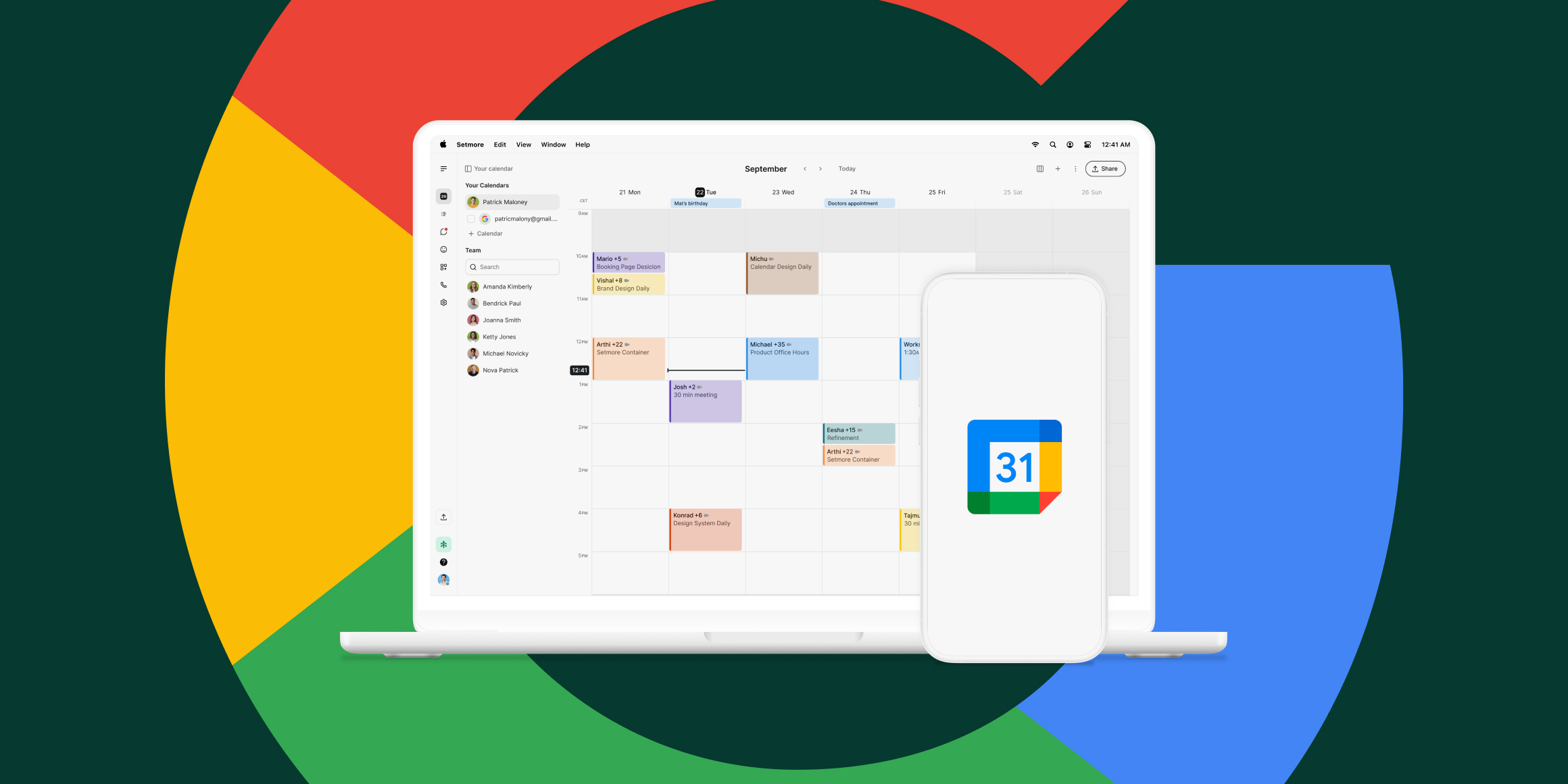
Adding your appointments to Google Calendar and vice versa helps bring everything together in one place. With 2-way calendar sync, no matter where you add an event, it appears in Setmore, helping you avoid double bookings. When someone books time from your Booking Page, it shows up alongside your other commitments.
All automatically. No copying. No manual effort. No clashes.
Why connect your bookings to Google Calendar?
Relying on manually entering appointments is where mistakes can happen. It’s easy to double-book, miss updates, or even just take up too much time in your day from what you’ve already done once — you’ve customers to tend to!
Syncing appointments with Google Calendar provides a clearer picture of your day and eliminates the need for you to re-enter details. It’s really useful if you use Google Calendar for work and life, as well as managing bookings alongside meetings or running a team with shared availability.
Think of it like this: your schedule stays accurate without extra effort.
It’s in sync
Time to wave bye-bye to complicated days. There are two ways to add appointments to Google Calendar. Which one you choose depends on how much control you want inside Google Calendar itself.
2-way sync (recommended)
This option keeps both calendars aligned and is available with Pro. New bookings appear in Google Calendar, and events added in Google Calendar can block availability in your booking calendar.
It’s the best choice if Google Calendar is where you actively manage your time and need changes to flow both ways.
1-way sync (view only option)
This sends appointments to your Google Calendar from Setmore, allowing you to view them alongside your existing calendar entries. While useful, this option does have certain limitations, as changes must still be made in your booking calendar if made in Google Calendar.
Perfect for visibility without editing appointments from Google Calendar, but for busy businesses, 2-way is probably best.
How to set up 2-way Google Calendar sync
Before connecting anything, take a moment to check that both calendars use the same time zone. This prevents appointments from appearing at the wrong time later on.
Step 1: Check your time zone
In Google Calendar, open Settings and confirm your time zone. Then, in your account settings, check that your opening hours reflect the same time zone.
Step 2: Connect your calendar

- Log into your Google account in a new browser tab
- In Setmore, go to Settings > Your team
- Select a team member profile
- Open Calendar
- Click ‘Connect’ next to ‘Google Calendar’
- Choose the Google Calendar you want to sync
- Enable sync
New bookings now appear in Google Calendar, and Google events begin blocking availability automatically. For illustrated step-by-step instructions, read our support article.
Step 3: Managing changes
Once connected, appointments can be rescheduled by dragging them in Google Calendar. Updates take a few minutes to reflect. After connecting, bookings from the past month and up to two years ahead stay in sync.
How to set up 1-way Google Calendar sync
If you only want appointments visible in Google Calendar, this setup takes just a few minutes.
- Go to Your team and select a team profile
- Click Integrations, then choose ‘Get link’
- Open Google Calendar in a new tab
- Under Other calendars, select ‘From URL’
- Paste the copied link and add the calendar
Ensure that ‘Other calendars’ is checked so they appear in your calendar view. They will update automatically, but allow a short amount of time for sync to show.
Everything but the kitchen sync
Calendar sync works best when it’s part of a bigger system that protects your time. Pairing it with tools like a Booking Page, automated reminders, video meetings, and online payments helps ensure appointments are intentional, confirmed, and ready to go before they ever hit your calendar.
Instead of reacting to bookings, your schedule stays balanced and predictable.
In one schedule we trust
Having a calendar where appointments update themselves just feels calmer. It’s reliable, you know what’s coming, and calendar management becomes simple.
Connecting Setmore with Google Calendar gives you an honest overview, gives you clear availability (for work and life), and your focus stays where it’s needed: with the people in front of you.
Get started FREE with Setmore today and start making time for what truly matters.

by Lee
Writes words. Has a dog.