Flexible payment options
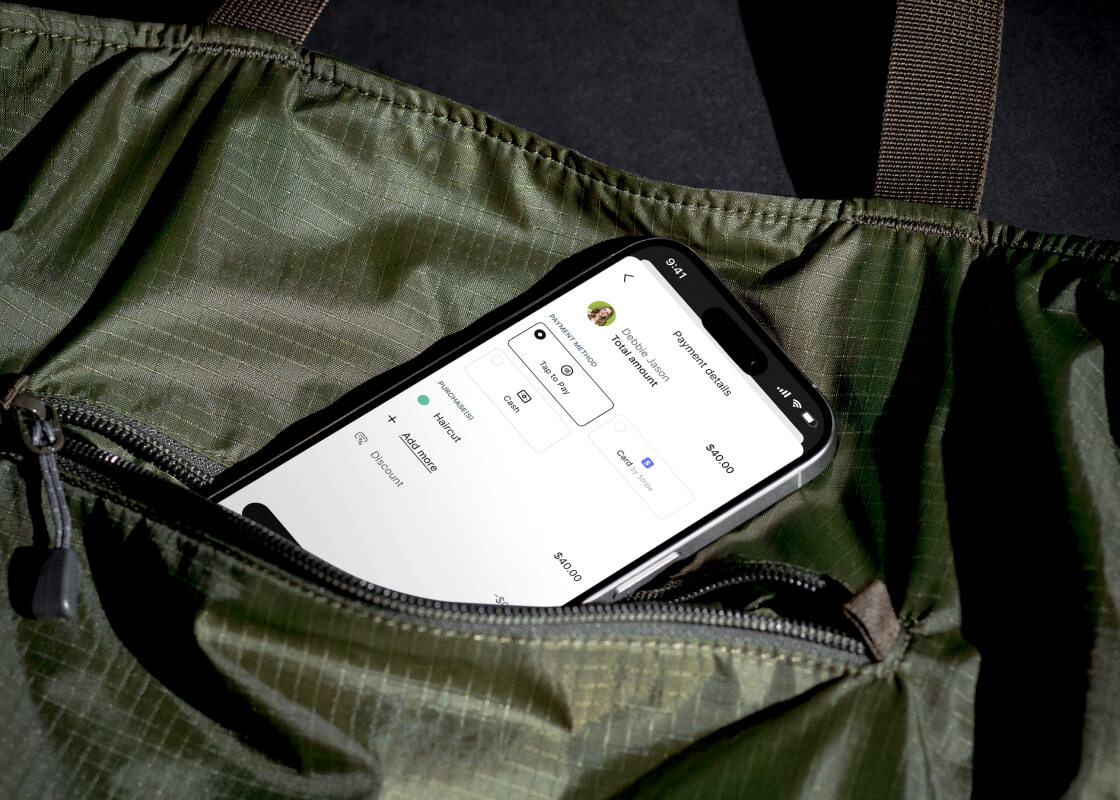
Pairs perfectly with Tap to Pay, or take card and cash payments to keep your day moving smoothly.

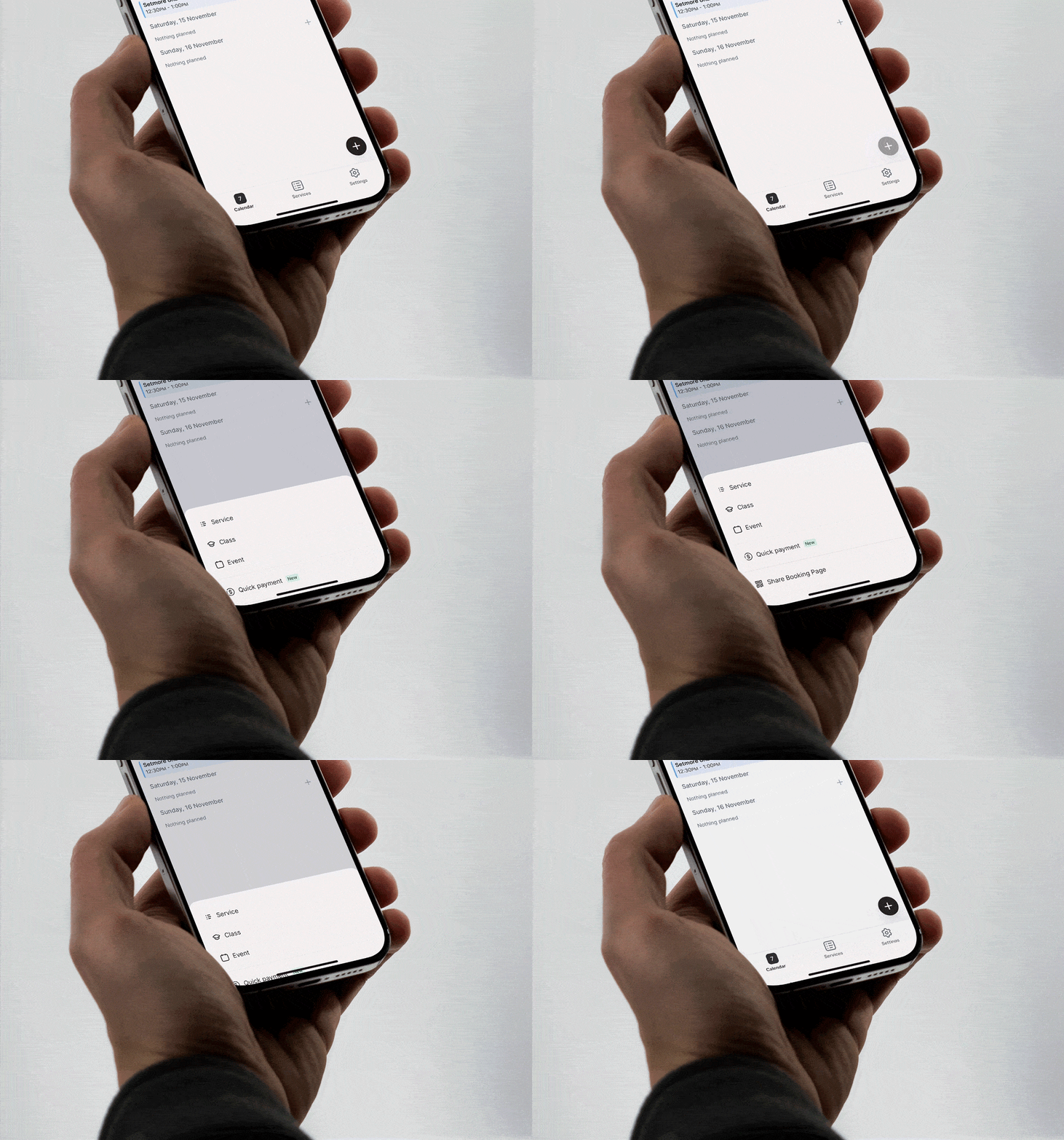
Get paid instantly without needing an appointment. Perfect for walk-ins, tips, or selling merchandise.
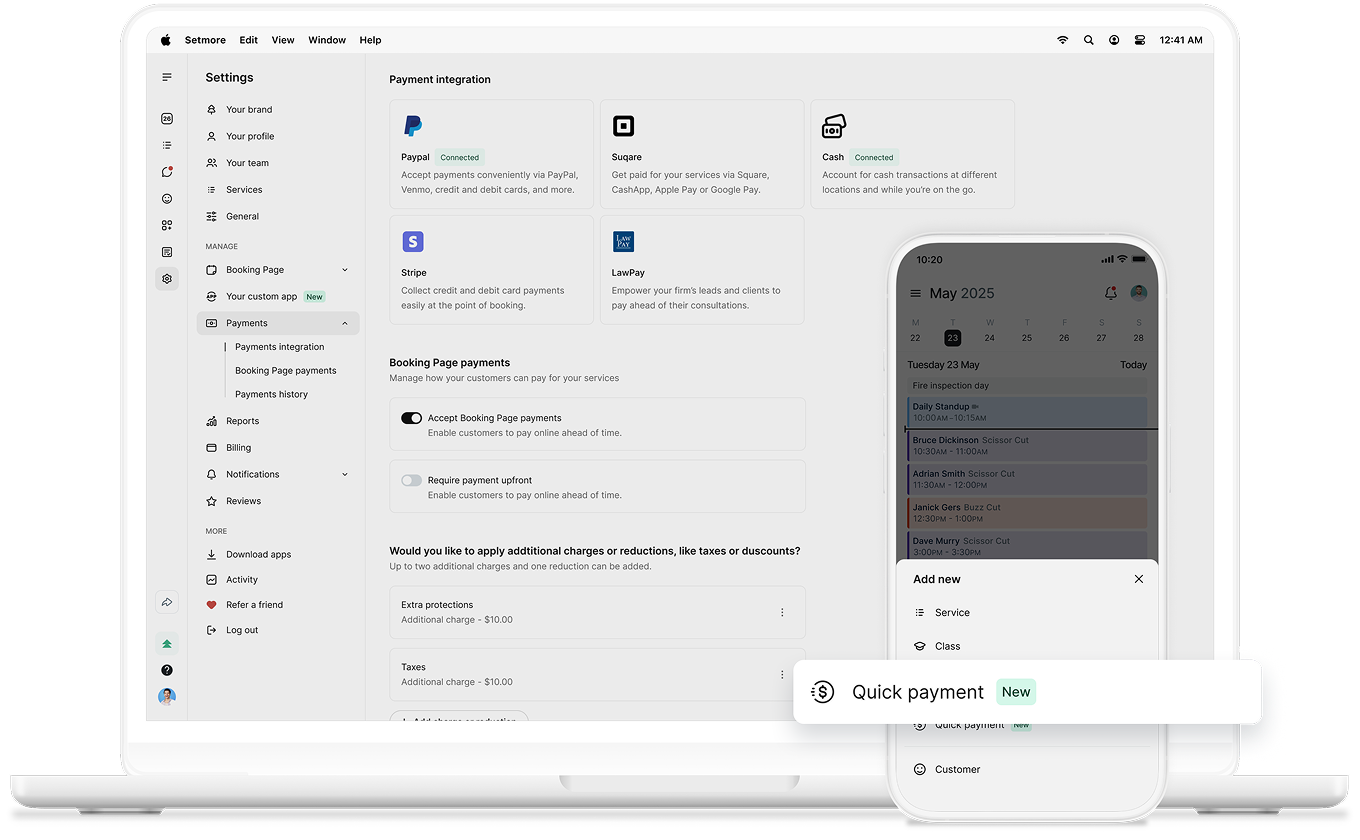
Pairs perfectly with Tap to Pay, or take card and cash payments to keep your day moving smoothly.
Every payment is recorded in your app. Check history, Issue refunds, and even share receipts.
Sell products, add custom extras, or charge for an impromptu consultation—the choice is yours.
Take bookings and payments anywhere. And with Tap to Pay up 200% in the past year, turning your phone into a point of sale is a no-brainer.
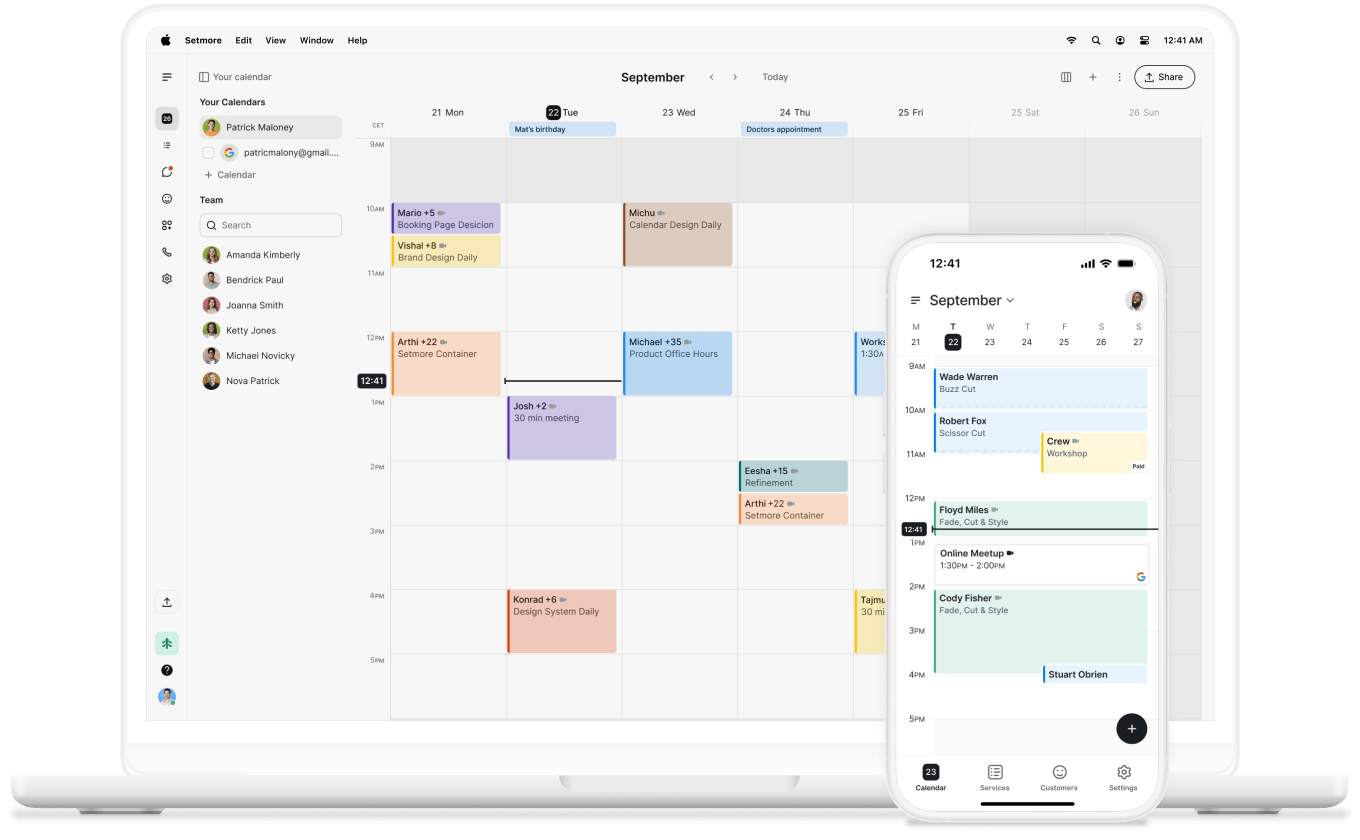
Manage your team, schedule appointments, and take payments. Everything you need, right in your pocket.

Appointments help make the most of your time. But 80% of people make impulse purchases in-store, and quick payments lets you capture extra revenue.
Walk-ins are an easy way to earn more. No appointment needed—just focus on your work, open the app, and take payment.
In a busy salon, buzzing garage, or fast-paced firm, every minute counts—quick payments stop any delay.
Keep customers happy and lines moving. Every payment is simple, secure, and tracked in one place.
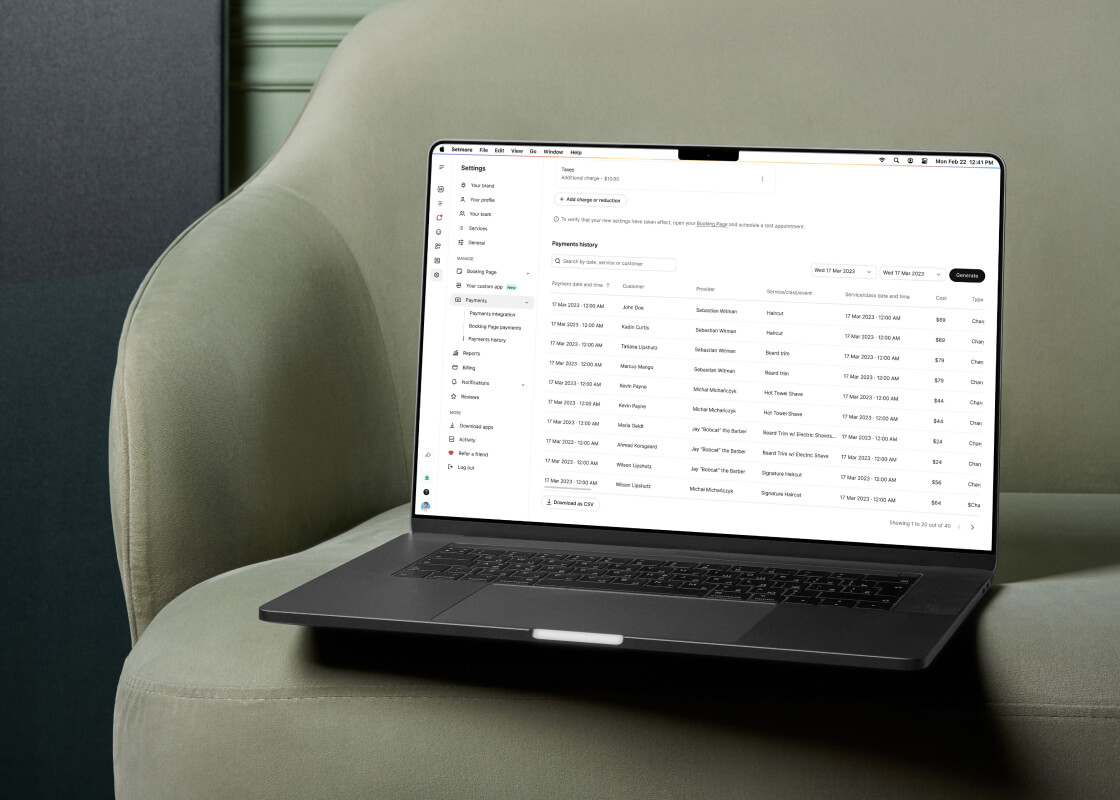
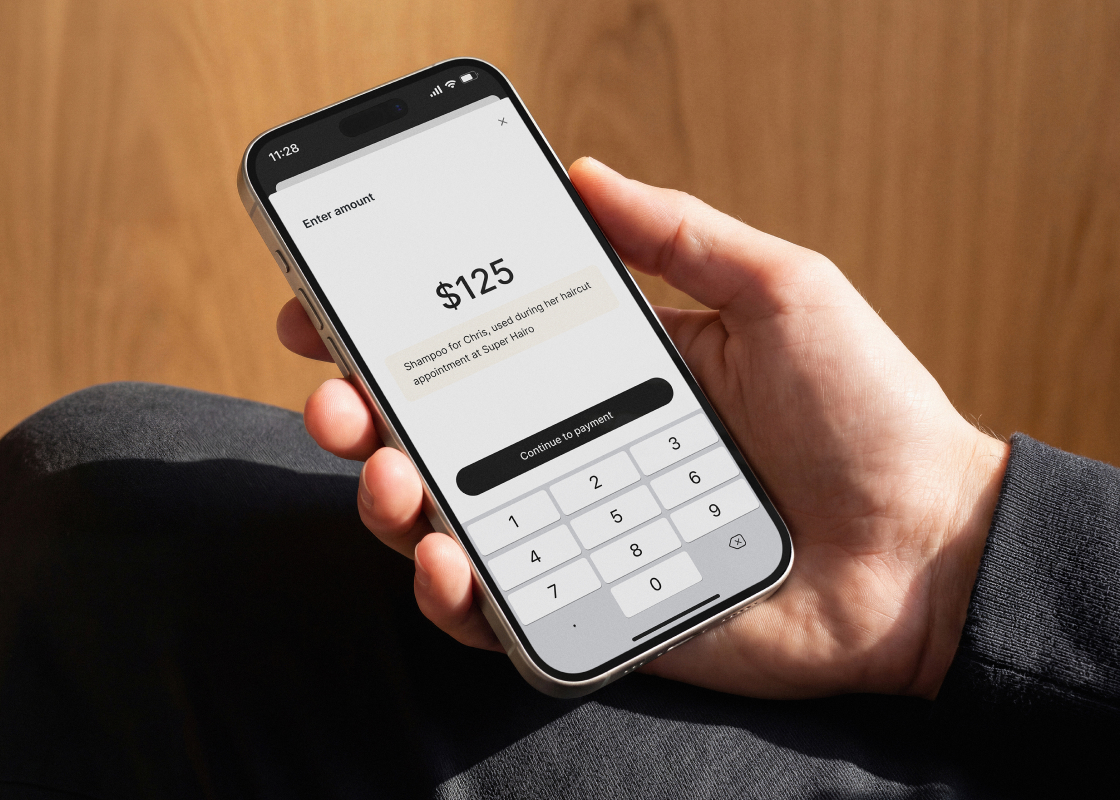
When you take a quick payment, tap the Note icon next to Continue to payment and note what has been charged for. That way, your payment history is clear, and you can keep on top of what comes in and out.
Notes come in handy for:
• Tips after a service
• Merchandise and retail add-ons
• Donations to a cause you support
• Any one-off purchase outside your regular services
Chat with your team, connect the apps you love, take payments, and let Live Receptionist handle your calls. Set up a demo and discover how.