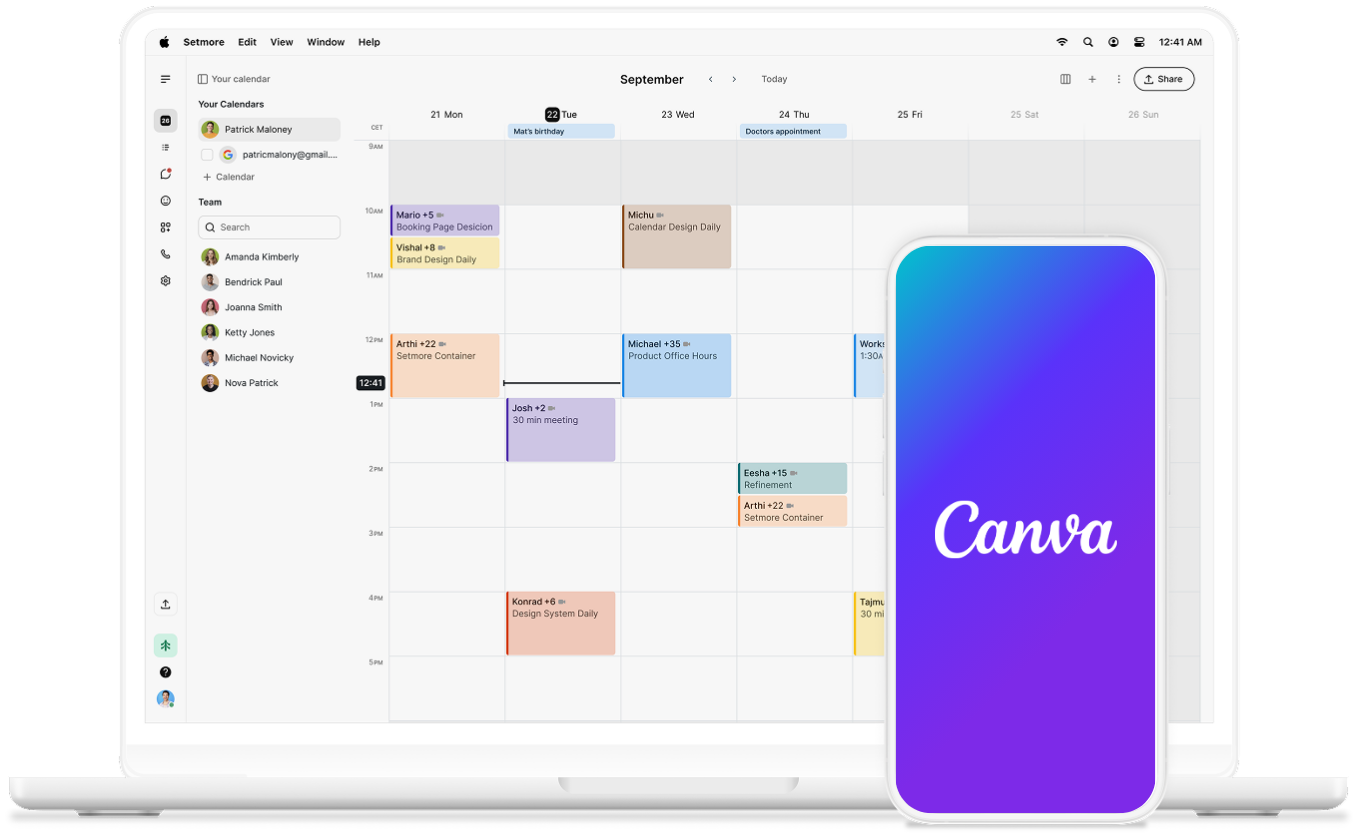
Get booked from Canva designs

Every flyer, business card, or social graphic becomes a direct route to your Booking Page just by adding your QR code. 

Canva on phone

Designs that convert

Get attention with a flyer, get bookings with a QR code. Ensure yours does both by combining Canva with Setmore.

icon tick

One scan, one booking

QR codes are scanable, print-ready, and free. Drop it into any of your designs so customers can scan and book.

icon tick

Always on brand

Your QR code becomes part of your design. Blend colors, make it stand out, and deliver a consistent experience. 

icon tick

Designed for bookings

99.5 million US smartphone users have scanned a QR code — and the number grows every year. Your customers already know what to do when they see one.


While you're creating something on brand, bespoke, and eye-catching in Canva, make sure that effort converts by directing customers to your Booking Page.


How to add your booking QR code to Canva 

  1. In your Setmore web app, go to Settings > Booking preferences > Overview and click the QR code icon.
  2. Click Yes, Download.
  3. Open your design in Canva, click Uploads, and add your QR code.
  4. Place and resize it to fit your design.


For digital designs such as presentations or PDFs, you can add your booking link instead. Learn how to get your Booking Page URL here.


Creativity that converts

Add your Setmore QR code to Canva in minutes and turn every piece of content into a booking channel.
Canva logo

Your complete QR code guide

Your complete QR code guide

Everything you need to know about sharing your Setmore QR code and getting more bookings from it.

Smiling girl with QR

Brand building on social media

Here are ten easy steps to crafting your brand image on social media and turning likes into appointments.

Mobile screen with social apps

Customize your Booking Page

Consistency is key – discover seven tips to ensure your Booking Page is an extension of your brand.

Smiling Man looking at camera